
 By
Parth Shah
Published Feb 28, 2026, 9:30 AM EST
By
Parth Shah
Published Feb 28, 2026, 9:30 AM EST
Parth is a technology analyst and writer specializing in the comprehensive review and feature exploration of the Android ecosystem. His work is distinguished by its meticulous focus on flagship devices, particularly Google Pixel and Samsung mobile hardware and software.
Parth's insightful commentary extends beyond device specifics. He provides expert guidance on productivity software, system optimization, and the advanced functionalities that allow users to maximize their device's potential. His analyses are crucial resources for readers seeking to master complex operating system features and streamline their digital workflows.
When he is not busy with technical analysis and software evaluation, Parth dedicates his time to watching K-dramas, studying mobile technology trends and the role of artificial intelligence.
Sign in to your Android Police account Add Us On Summary Generate a summary of this story follow Follow followed Followed Like Like Thread Log in Here is a fact-based summary of the story contents: Try something different: Show me the facts Explain it like I’m 5 Give me a lighthearted recapGoogle builds the Pixel to be the smartest smartphone on the market, but out of the box, that intelligence often comes at a cost.
Between background processes draining your battery to predictive features that feel more intrusive than helpful, the default experience isn’t always the best one.
After years of using Google’s hardware, I have realized that the secret to a truly pro experience isn’t just about what you enable. It’s about what you turn off.
Here are the features I disable the moment I take a Pixel out of the box.
 Related
I have used dozens of Android phones, but these Pixel features still absolutely amaze me
Related
I have used dozens of Android phones, but these Pixel features still absolutely amaze me
These add-ons make Pixel special
Posts 4 By Parth ShahDon’t add new app icons to the home screen
 Close
Close
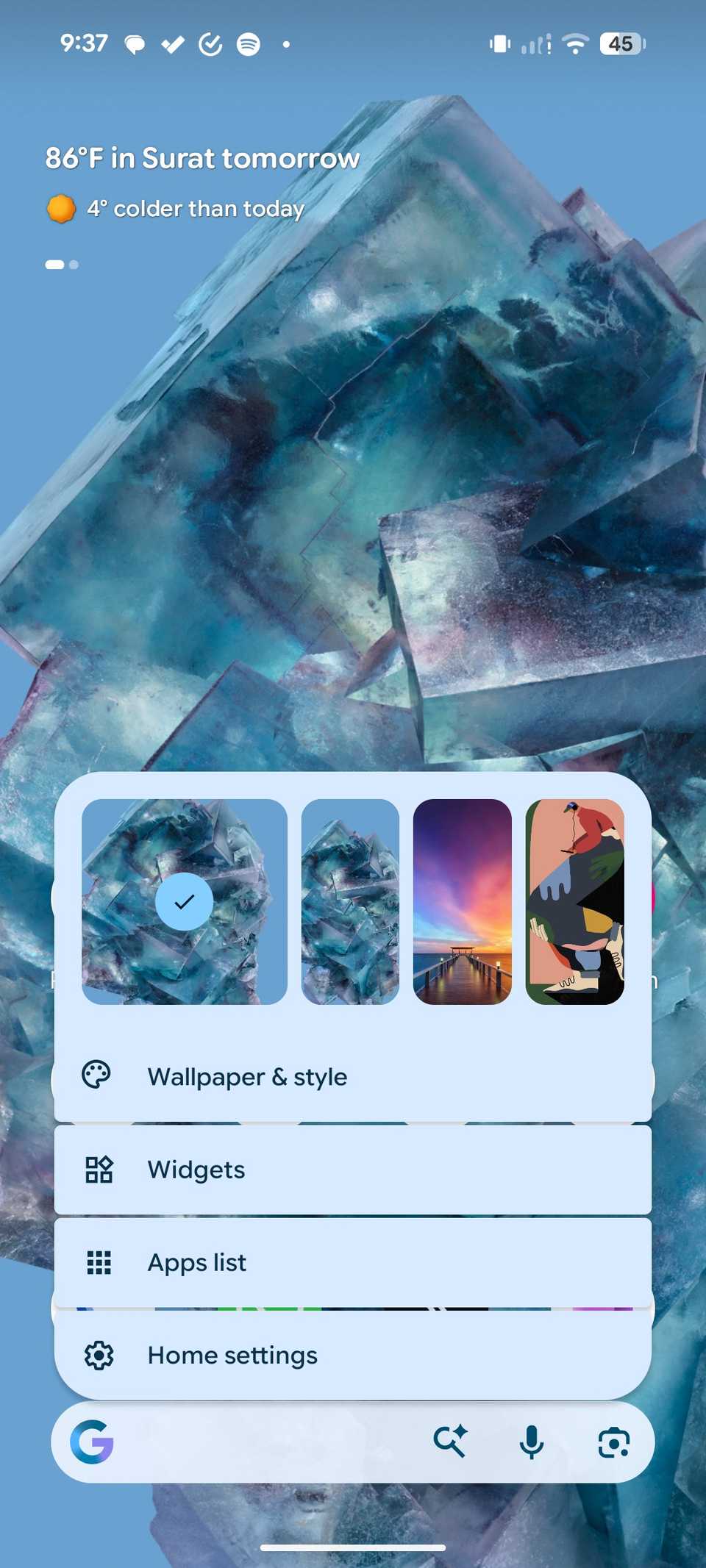
Since I’m constantly downloading new apps for testing and review purposes, my app drawer can become a bit of a digital graveyard. Still, I refuse to let that clutter bleed into the home screen.
I design my Pixel home screen with a specific flow in mind. Every icon has a purpose, and every widget is placed to balance functionality with a clean look.
When Android automatically fills the available gap with new apps and games, it breaks that visual harmony.
I would much rather spend the extra two seconds manually dragging an app I actually plan to keep than spend time hunting down and deleting the ones I’m only using for a 20-minute review.
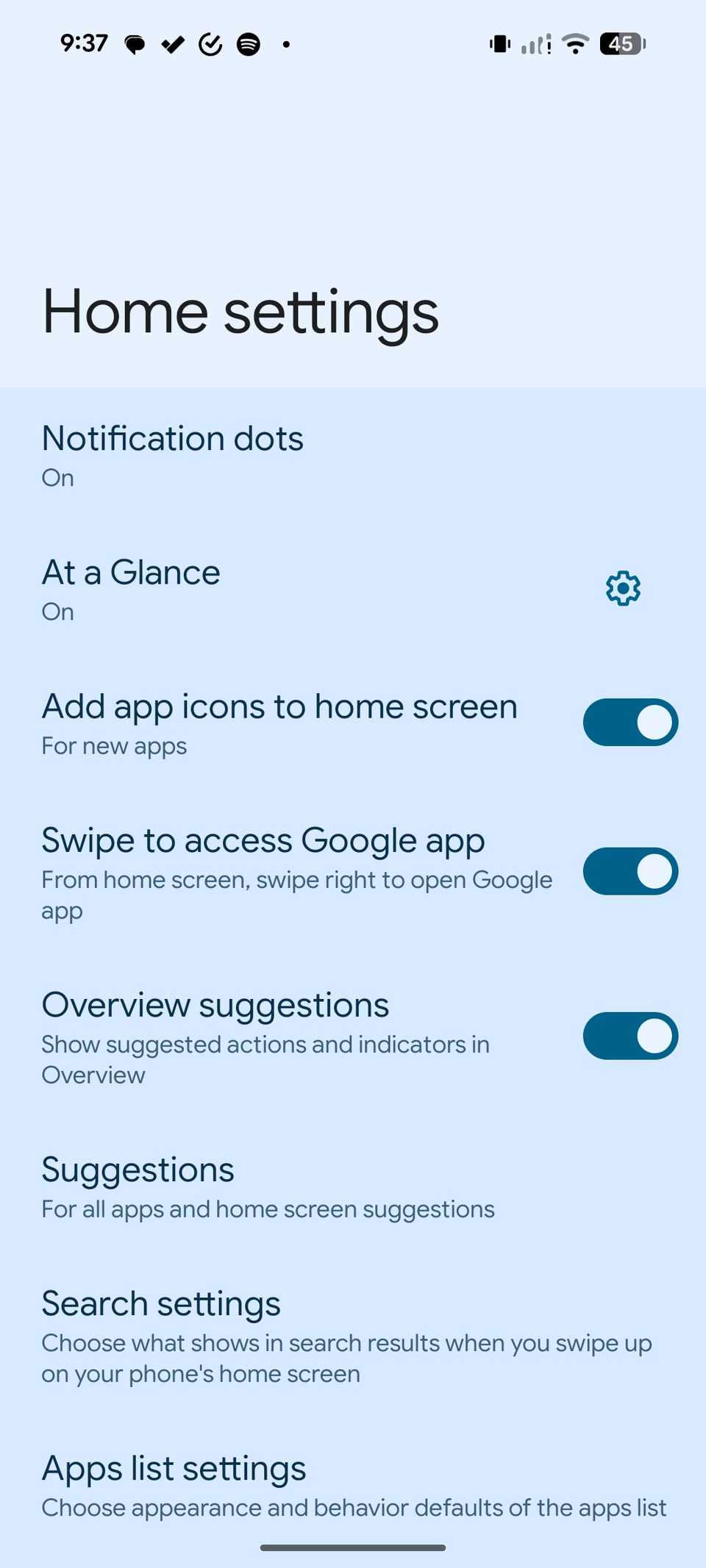
I simply headed to the Home screen settings and disabled the Add app icons to home screen toggle.
Disable Now Playing
 Close
Close
One unique thing about the Pixel is its ability to identify music playing in the background without you even asking.
After living it for a few generations, I have decided it’s a luxury my battery simply doesn’t need to pay for.
For the feature to work, your phone’s microphones are always active, and the system is constantly cross-referencing audio snippets against an on-device database of tens of thousands of songs.
Lately, I have noticed the feature either misses half the songs playing or only identifies them after they are nearly over.
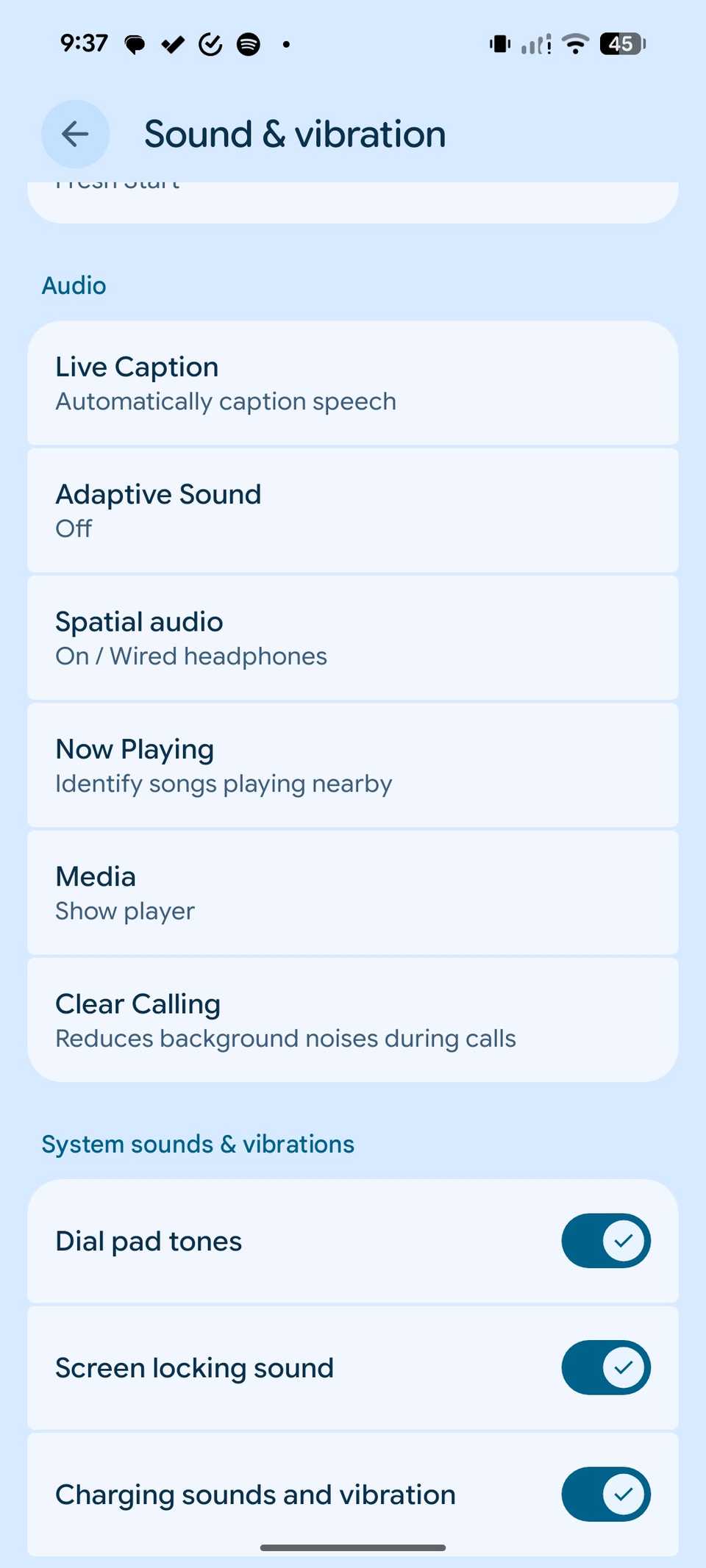
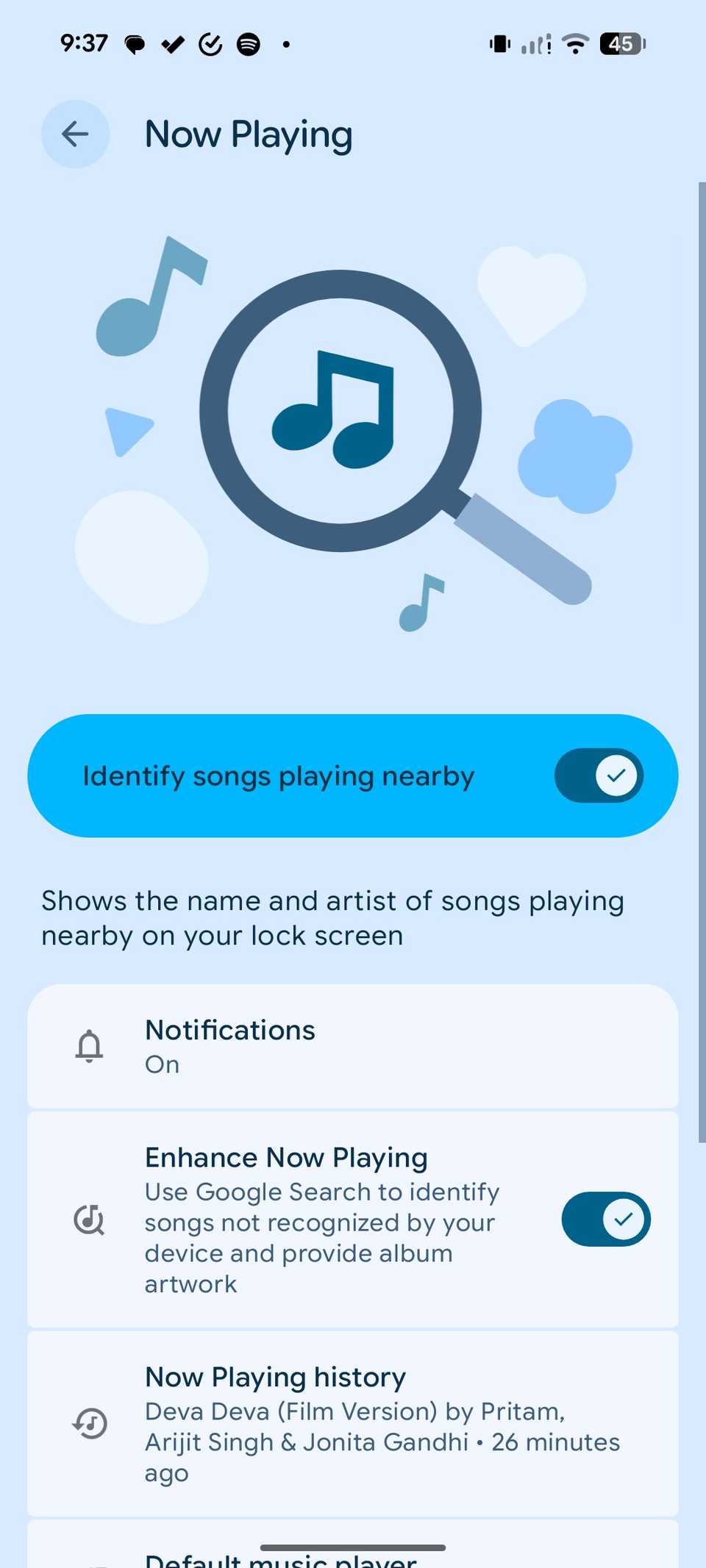
I simply headed to Settings > Sound & vibration > Now Playing and disabled the toggle from the following menu.
Disable swipe to access Google app
Close
Of all the helpful gestures Google backed into the Pixel Launcher, swipe to access the Google app is the one that I detest most. It’s positioned on the far-left edge of the home screen.
That makes it easy to trigger by accident when you are just trying to swipe between your main pages. I have disabled the gesture from the Home screen settings menu.
The irony of the Pixel Launcher is that the Google Search bar at the bottom of the screen is permanent; you can’t move it or delete it.
Now, I simply tap the G icon in the search bar to open the same menu. My home screen finally feels like a solid, predictable interface again.
Turn off Top Shot
 Close
Close
If there is one camera feature that sounds brilliant in theory but feels messy in practice, it’s Top Shot.
As someone who takes hundreds of photos a week for reviews and testing, storage is a constant battle.
Because Top Shot attaches a small video file to every single still image you take, your Google Photos library starts filling up in no time.
I like my photo gallery to be a collection of moments, not a library of flickering Live Photos that play every time I scroll past them.
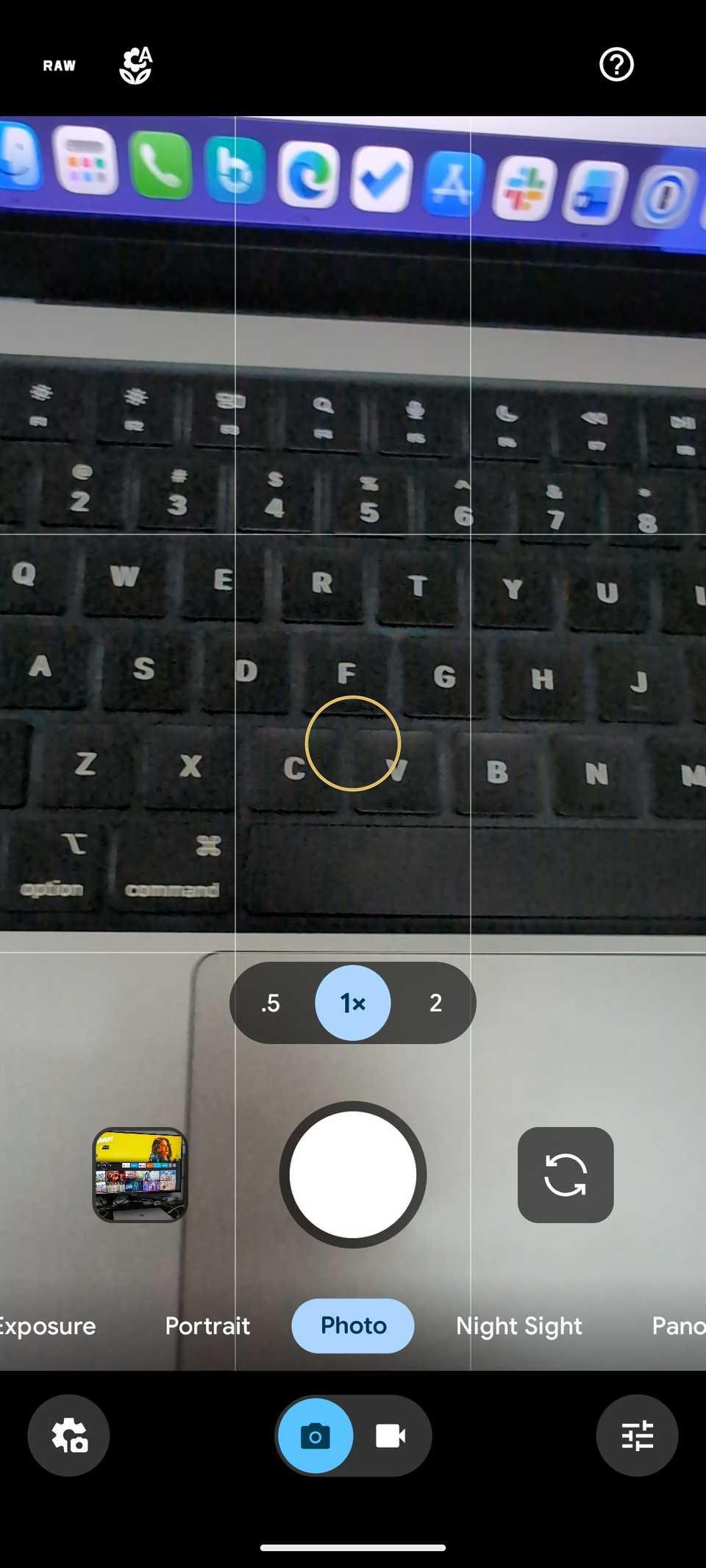
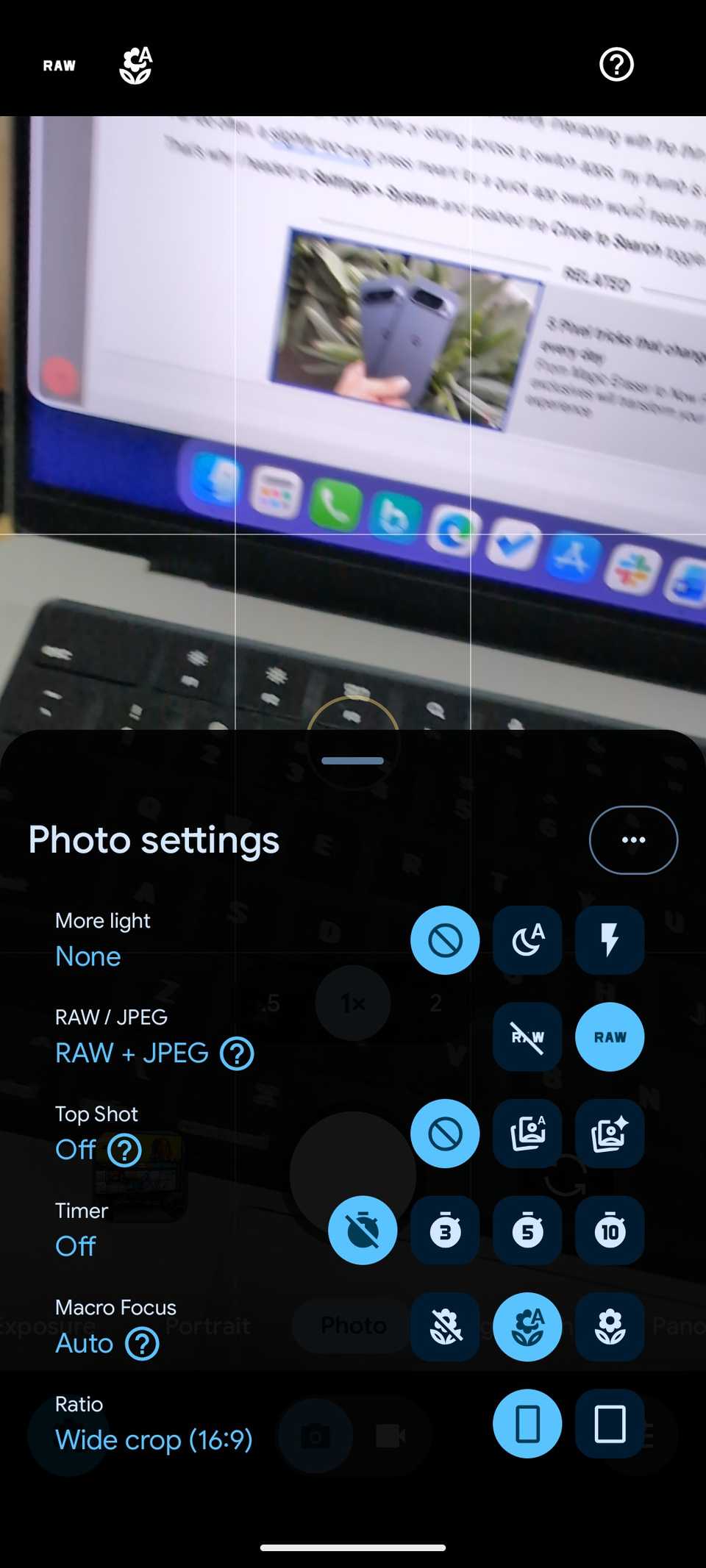
I navigated to the Camera settings and disabled Top Shot.
Disable Circle to Search
 Close
Close
If you use gesture navigation as I do, you are constantly interacting with the thin little bar at the bottom of the screen.
Whether I’m swiping up to go home or sliding across to switch apps, my thumb is always in that danger zone.
Far too often, a slightly too-long press meant for a quick app switch would freeze my screen and pull up the Google search overlay.
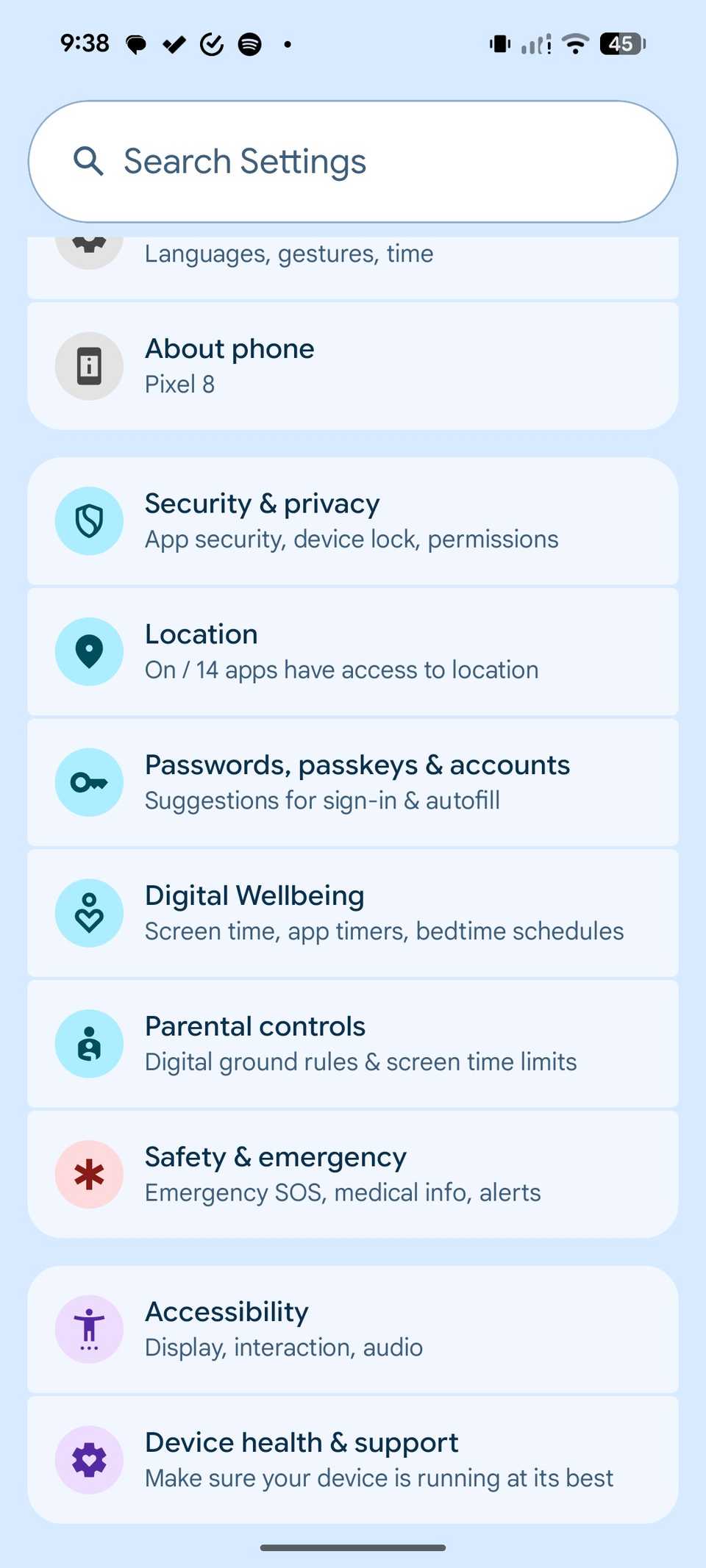
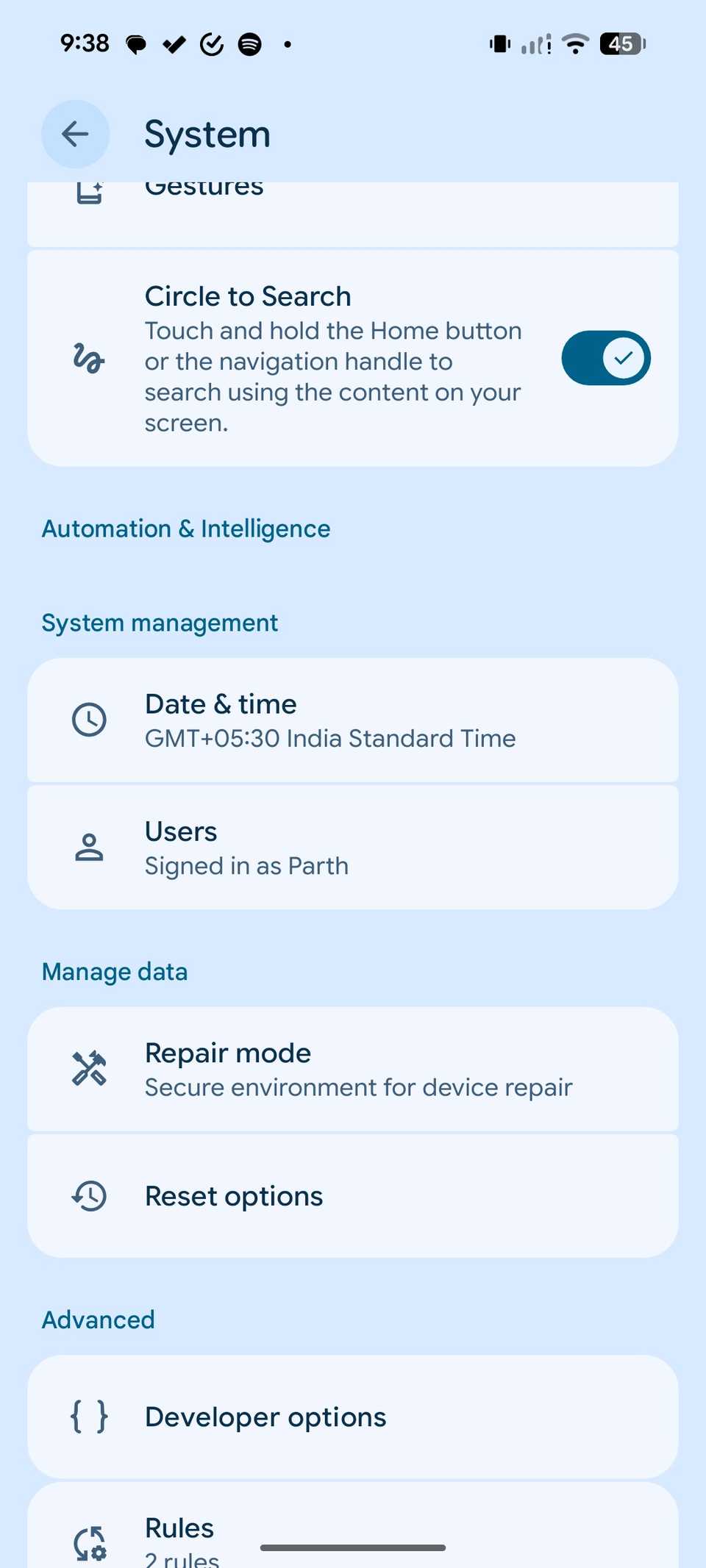
That’s why I headed to Settings > System and disabled the Circle to Search toggle.
Turn off keyboard sound
 Close
Close
The Pixel has some of the best haptic motors in the business. When I type, I want a sharp, tactile thud that mimics the feel of a physical key — and the Pixel delivers that perfectly.
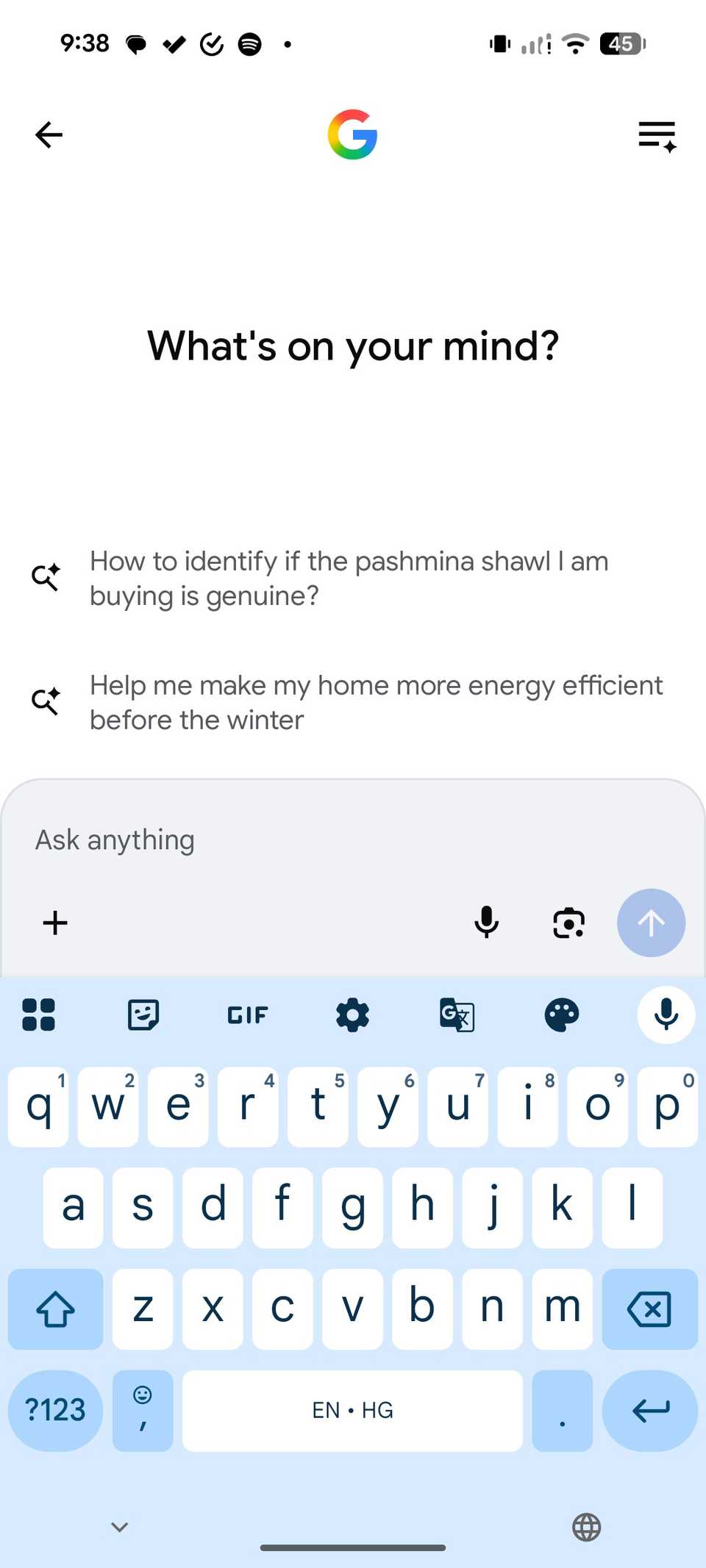
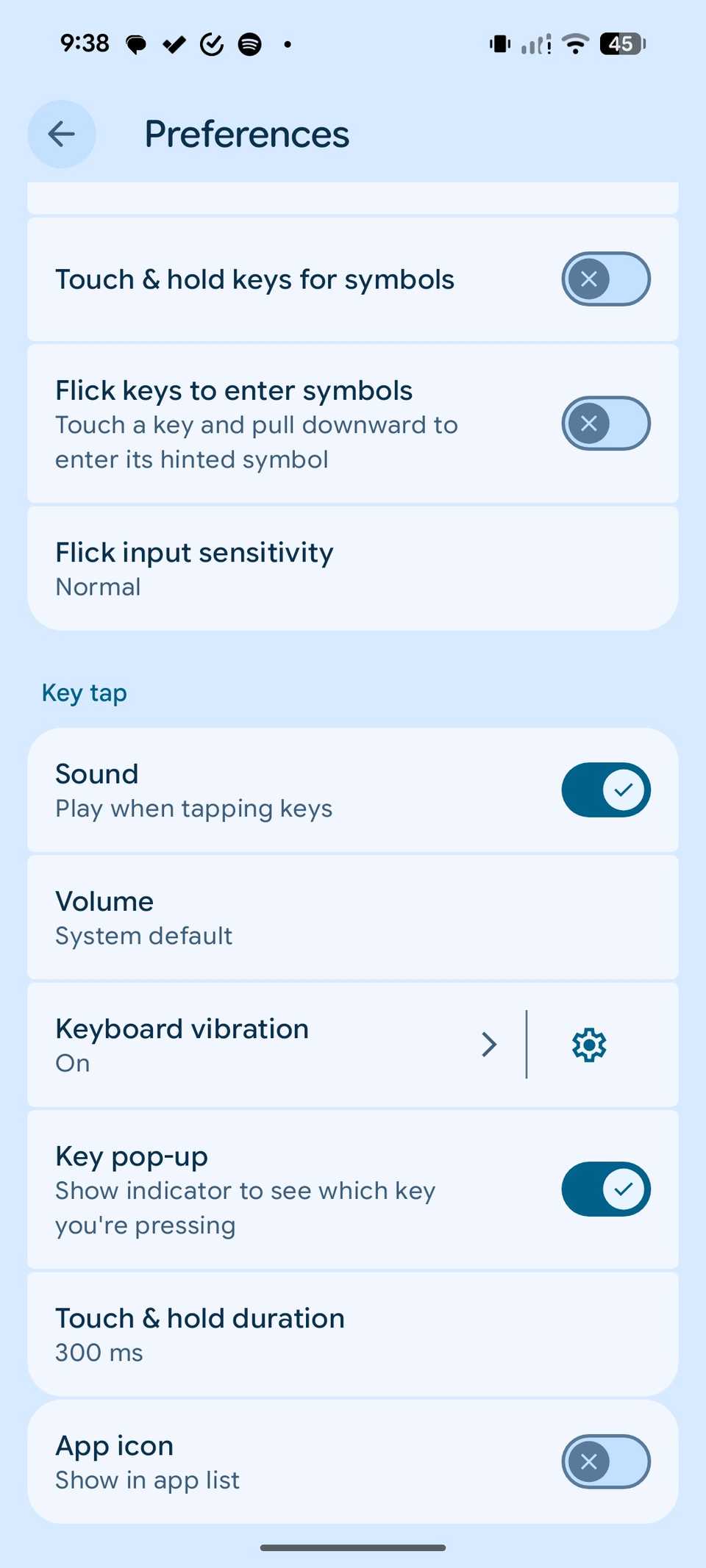
We have all been next to that person in a waiting room or on a train whose phone is firing off keyboard clicks. It’s irritating. I opened Gboard preferences and disabled the sound toggle.
When I’m in the flow of writing a long email or a review, the silence helps me focus. It makes the phone feel more like a precision tool and less like a toy.
After all, if the haptics are good enough to give me the feel, the sound is just unnecessary clutter.
Fixing the Pixel
The perfect smartphone experience is subjective, but it shouldn’t come at the cost of your battery life or privacy.
Take five minutes from your busy schedule and transform your Pixel into a tool that actually works for you.
After all, you don’t have to settle for ‘out of the box’ performance when a few simple toggles can make your phone feel faster, leaner, and more intentional.
After you make these changes, go over these specific Camera settings to elevate your Pixel photography in no time.
-
 Phones
 My Pixel Camera is infinitely better since I tweaked these settings
 Android Auto will finally get this beloved Google Maps feature
 The latest Pixel software issues raise old concerns